Cook History
Recipe Box can record every time you cook a recipe - with a date, optional notes, and an optional photo. That history is stored as structured frontmatter so it's fully queryable with Dataview or Obsidian Bases, and also used by the meal suggester to power its scoring rules.
Cook history is enabled by default. To disable it, turn off Track cook history under Settings → Recipe Box → Cooking & tracking.
Marking a Recipe as Cooked
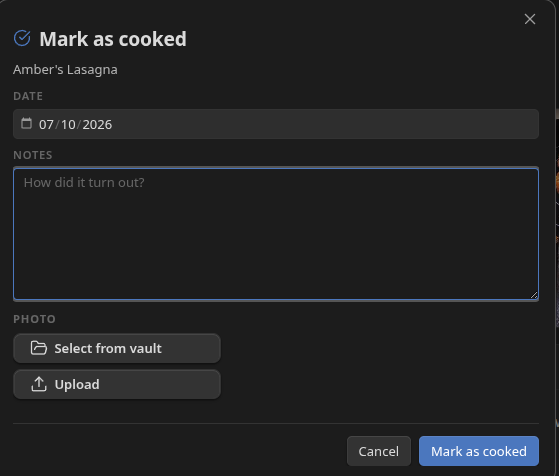
Click the Mark as cooked button in the recipe header (visible when Track cook history is enabled). This opens the mark-as-cooked dialog:
- Date - defaults to today. Change it if you're recording a cook from a different day.
- Notes - a free-text field for anything you want to remember: what you changed, how it turned out, who you made it for.
- Photo - attach a photo to this cook entry. Three options are available: Select from vault (pick an existing image file), Upload (choose a file from your device), or Camera (mobile only - take a photo directly).
Click Mark as cooked to save. Recipe Box adds a new entry to the history and updates lastMade and cookedCount automatically.
Viewing Cook History
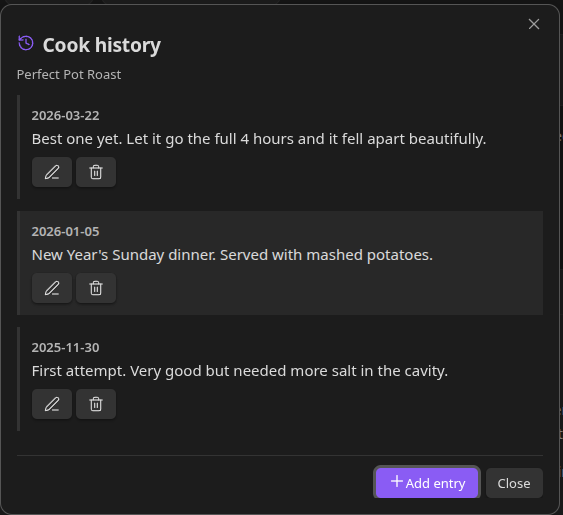
Desktop
When Track cook history is enabled, a Cook history button appears in Recipe View. If the recipe has been cooked at least once, the button shows a count badge. Click it to open the Cook History modal - a scrollable list of every cook entry for that recipe, newest first.
The Cook History modal is also accessible from the recipe's three-dot context menu.
Mobile
On mobile, a Cook History tab appears in the recipe view tab bar (next to Ingredients, Steps, and Info). Swipe to it or tap its clock icon. The full history is shown inline - no modal required.
Cook History List
Each entry in the list (modal on desktop, tab on mobile) shows:
- The date of the cook
- Your notes, if any
- A photo thumbnail, if one was taken, pinned to the right. Tap or click the thumbnail to view it full-size.
Each entry also has two action buttons:
- Pencil (edit) - opens the entry editor to change the date, notes, or photo.
- Trash (delete) - removes the entry after a confirmation prompt. The corresponding image file is left in the vault.
Adding Entries Directly
You can add a cook history entry without using the Mark as cooked button. In the Cook History modal (desktop) or tab (mobile), click Add entry to open the same entry editor used for editing. Fill in the date, notes, and optional photo, then click Add entry to save.
This is useful for backfilling cooks you didn't record at the time.
How Cook History is Stored
Cook history uses a two-layer storage model designed so the data stays fully portable and queryable.
Frontmatter array (source of truth) - Every entry is stored as an object in a cookHistory frontmatter array (property name configurable). Each object has an id, date, and note. This is the canonical record - Dataview and Obsidian Bases can query it directly. Photos are intentionally excluded from frontmatter; see below.
Managed note body section - Recipe Box maintains a ## Cook History section at the bottom of the note (heading name configurable). This section is a rendered display of the frontmatter entries and is fully regenerated on every write. A comment at the top of the section warns that manual edits will be overwritten. Do not hand-edit this section.
Photos - Photos are stored as regular vault attachments and embedded as ![[filename]] links inside the managed note body section. They are not stored in frontmatter, because a plain string path in frontmatter would not be tracked by Obsidian's link engine - renaming the image file outside the plugin would silently break the reference. Storing photos as real wikilink embeds in the note body means Obsidian handles rename tracking automatically.
Derived fields - lastMade and cookedCount are written alongside the cookHistory array on every update and are always derived from it. lastMade is the most recent date across all entries; cookedCount is the total entry count. These fields are what the built-in suggester scoring rules act on.
An example of what a recipe's frontmatter looks like after a few cooks:
lastMade: "2026-07-08"
cookedCount: 3
cookHistory:
  - id: abc123
    date: "2026-07-08"
    note: "Added extra lemon, worked well"
  - id: def456
    date: "2026-06-22"
    note: ""
  - id: ghi789
    date: "2026-05-30"
    note: "Doubled the garlic"
Related Settings
Settings → Recipe Box → Cooking & tracking:
| Setting | Default | What it does |
|---|---|---|
| Show mark as cooked button | On | Shows the Mark as cooked button in the recipe header. |
| Ask for date when marking cooked | Off | Prompts to confirm/change the date when marking cooked. When off, today's date is used with no extra step. |
| Track last made | On | Keeps lastMade in sync with the most recent cook history entry date. |
| Last made property | lastMade |
Frontmatter property name for the last-made date. |
| Track cooked count | On | Keeps cookedCount in sync with the number of cook history entries. |
| Track cook history | On | Enables full cook history storage and the Cook History tab/modal. |
| Cook history heading | Cook History |
Heading name for the managed note body section. |
| Cook history property | cookHistory |
Frontmatter property name for the cook history array. |
| Prompt for notes when marking cooked | On | Shows the notes field in the mark-as-cooked dialog. |
| Track photos | Off | Shows the photo picker in the mark-as-cooked dialog. |
See Settings Reference.